My Emoji
In this tutorial, you will learn how to:
• Create your My Emoji
• Use My Emoji in messages
Create your My Emoji
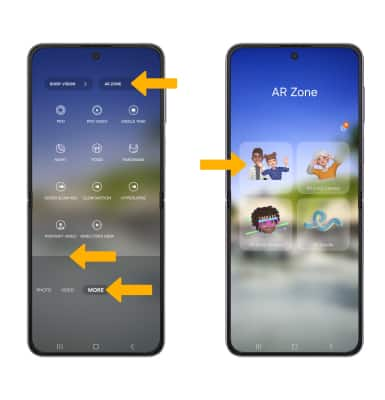
1. From the home screen, select the  Camera app. Swipe left to MORE, then select AR ZONE. Select AR Emoji Stickers.
Note: If prompted, select Allow to continue.
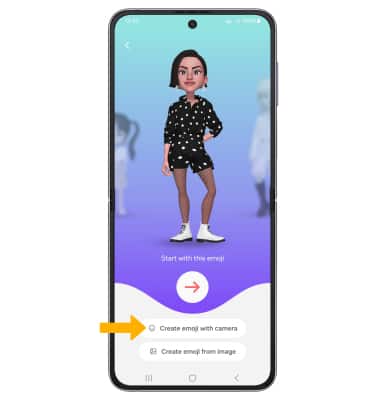
2. Select the desired option.
Note: For this tutorial, Create emoji with camera was selected.
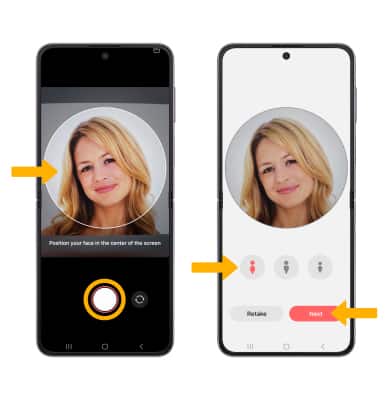
3. Use the camera to take a picture of the face you wish to turn into an emoji. Select the Capture icon. Select the desired gender, then select Next.
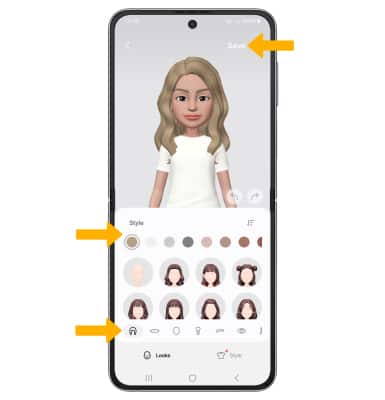
4. Edit your emoji as desired by head, make up, clothes, headwear and more by selecting the desired icon. Select Save when finished.
Use My Emoji in messages
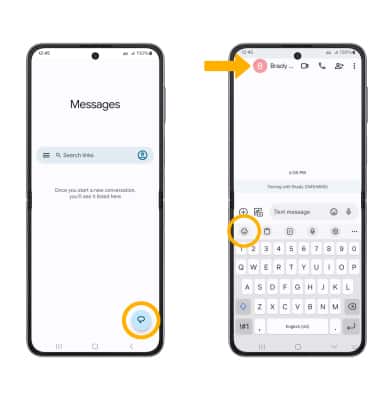
1. From the home screen, select the  Messages app.
2. Select the Compose icon. Enter the desired contact, then select the Emoji icon.
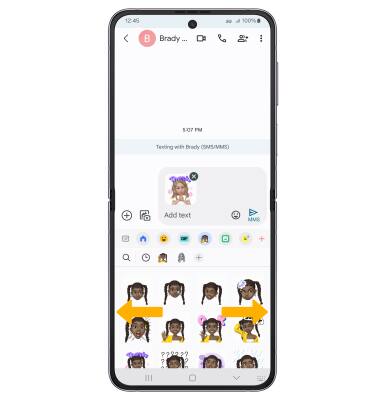
3. Select the My Emoji tab. Select the desired sticker you wish to use, then select the Send icon.
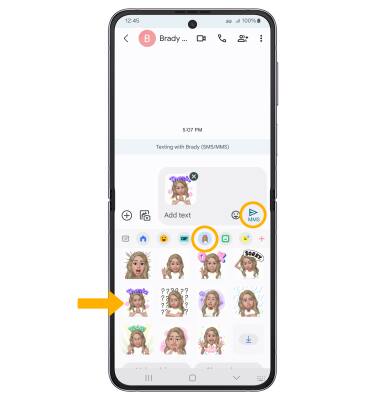
4. You may have more than one My Emoji available to use. From the My Emoji tab, swipe left or right to change My Emojis.
Note: To add an additional My Emoji, select the  Add icon next to the My Emoji icons then follow the prompts to complete setup.