Messaging settings
Messaging settings
Change text (SMS), picture (MMS), Advanced Messaging, wireless emergency (WEA), and AMBER alert settings.
INSTRUCTIONS & INFO
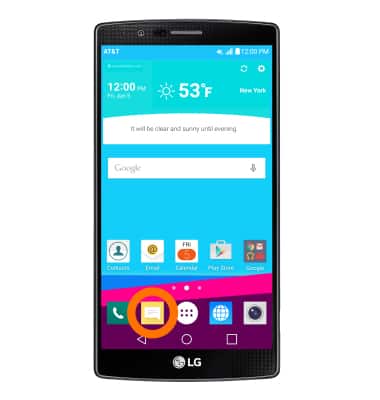
- To access the text & picture message settings screen, from the home screen, tap the Messaging icon.
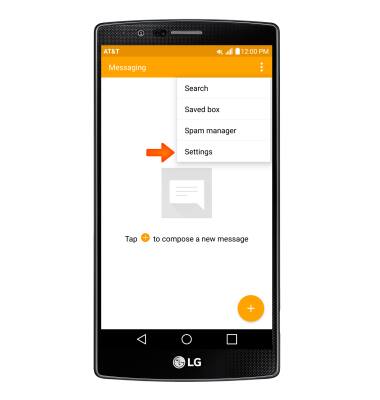
- Tap the Menu icon then tap Settings.
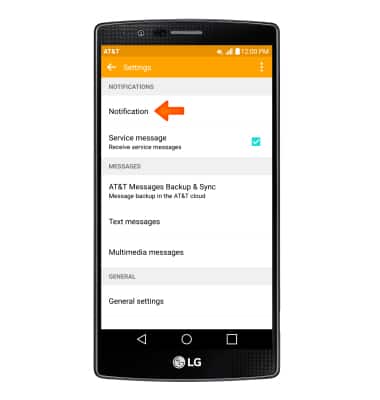
- To turn notification alerts on and off, tap Notification.
- Adjust notification alerts as desired.
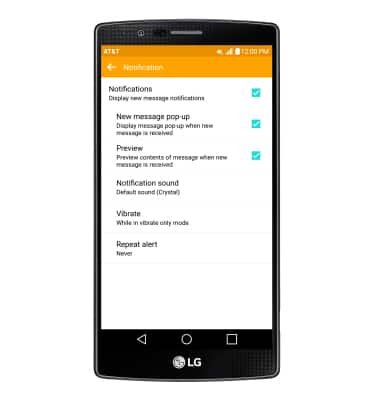
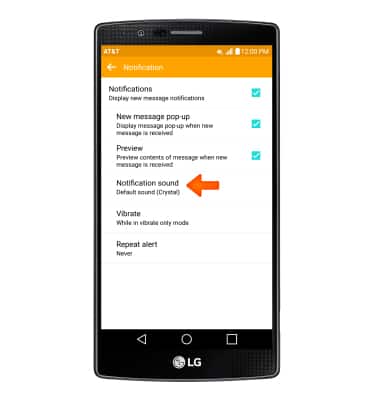
- To change the notification sound, tap Notification Sound and follow the prompts to choose a ringtone.
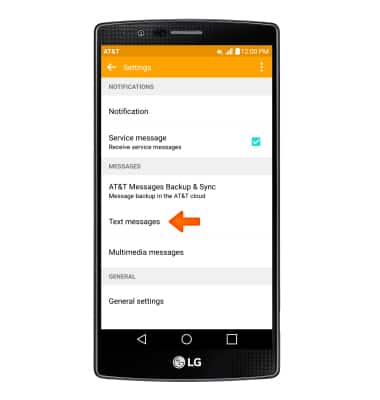
- To view the messaging service center number, tap Text messages.
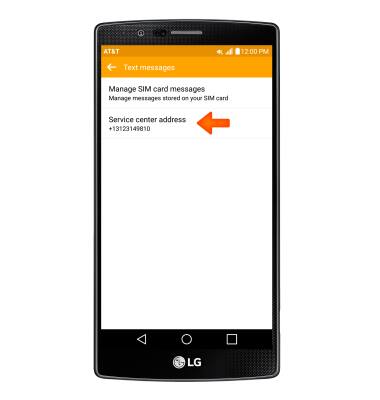
- The number will be under Service center address.
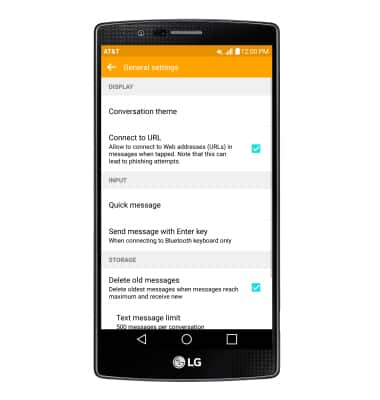
- To adjust text/picture mesage limit, tap General settings.
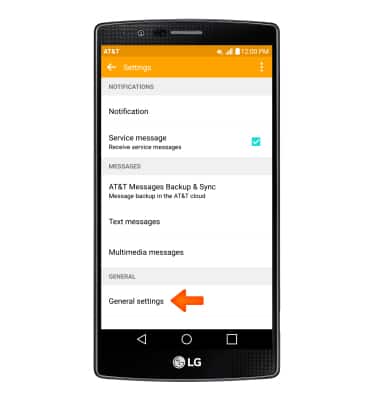
- Adjust Settings as desired.
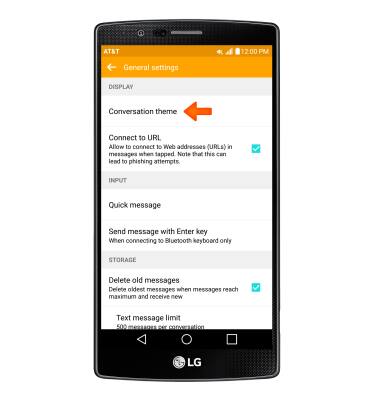
- To edit display settings, tap Conversation theme.
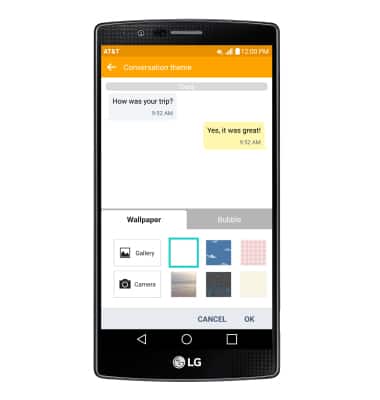
- Then adjust Settings as desired.
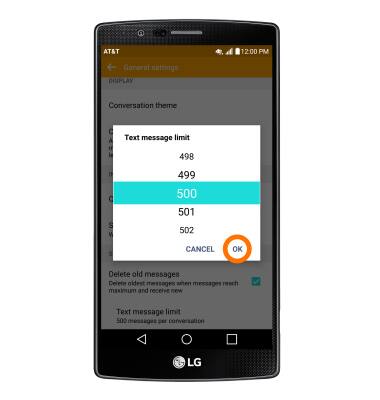
- Tap Text message limit or Multimedia message limit.
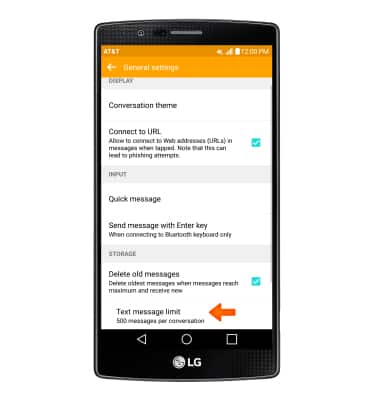
- Choose the Desired limit and then tap OK.
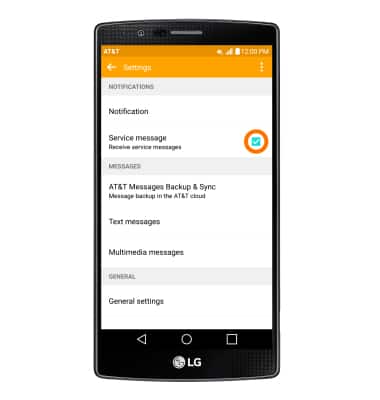
- To set emergency alerts, tap the Service message checkbox to turn on or off.
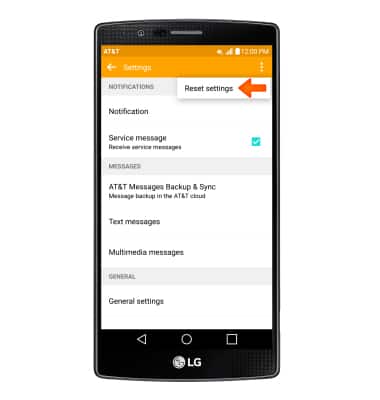
- To restore default settings, from the Messaging settings menu, tap the Menu icon, then tap Reset settings.
- To access Advanced messaging settings, from the Messaging settings menu, tap Advanced Messaging.
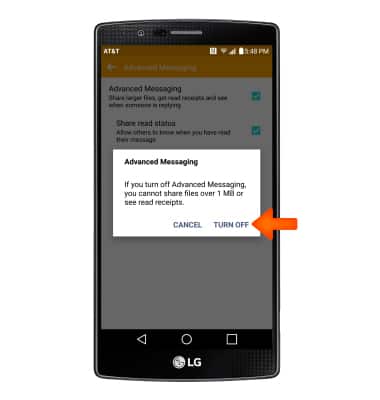
Note: If Advanced Messaging is turned on and you are messaging another device using Advanced Messaging, you can share files up to 10MB, get read receipts, and see when someone is replying.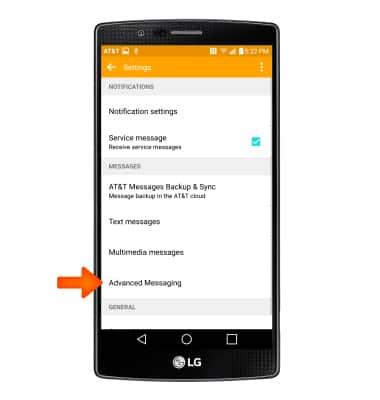
- To turn off Advanced messaging, tap Advanced Messaging.
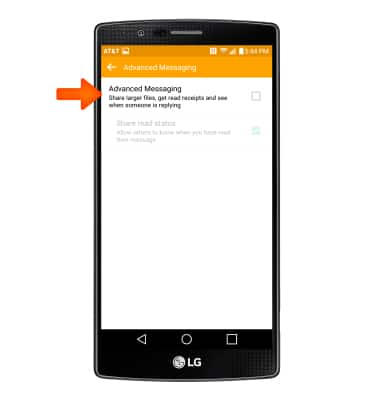
- Tap TURN OFF.