Block or Unblock Messages
In this tutorial, you will learn how to:
• Block messages
• Unblock messages
• View blocked contacts and numbers
• Filter iMessages from unknown senders
Block messages
1. From the home screen, select the  Messages app.
2. Select the desired message thread, then select the Contact at the top of the screen to view Contact options. Select info.
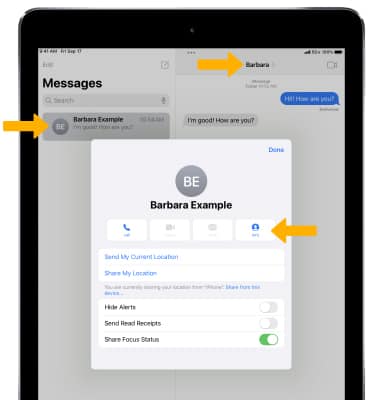
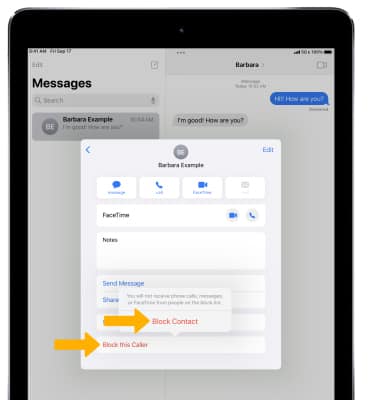
3. Scroll to and select Block this Caller, then select Block Contact to confirm.
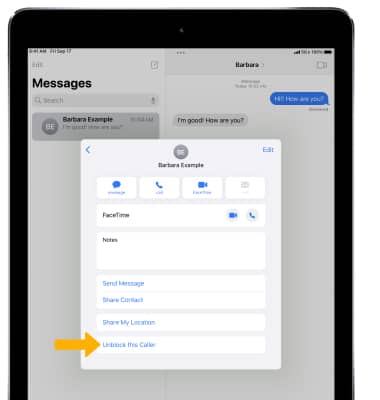
Unblock messages
From the desired contact, select Unblock this Caller.
View blocked contacts and numbers
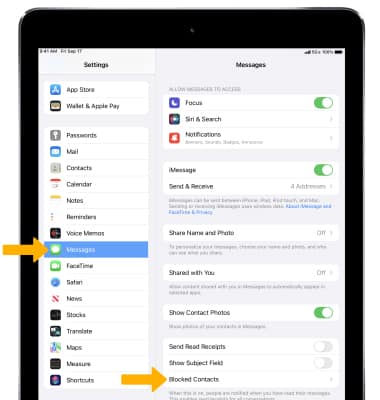
From the home screen, select the  Settings app > scroll to and select Messages > select Blocked Contacts.
Note: You can also access blocked numbers and contacts by selecting Settings > FaceTime > Blocked Contacts. To add new blocked numbers from the Blocked Contacts screen, select Add New.... To unblock a number, select Edit > select the  remove icon next to the desired number > Unblock. Learn more from the Apple support article Block phone numbers, contacts, and emails on your iPhone or iPad.
Filter iMessages from unknown senders
From the Messages screen, select the  Filter Unknown Senders switch.
Note: In the Messages app, Filtered iMessages will be routed to a separate tab. You will not receive notifications for Filtered Messages. Learn more from the Apple support article Block phone numbers, contacts, and emails on your iPhone or iPad.