Software Version
Software Version
Determine your current device software version and check for updates.
INSTRUCTIONS & INFO
 The images and steps in this tutorial reflect the latest software version (iOS 12). Stay current by regularly checking for software updates, which often include important security patches and performance enhancements. Use the AT&T Device Help app to quickly confirm whether your device is up to date. Before downloading updates, ensure you’re connected to a reliable Wi-Fi or cellular network for a smooth experience.
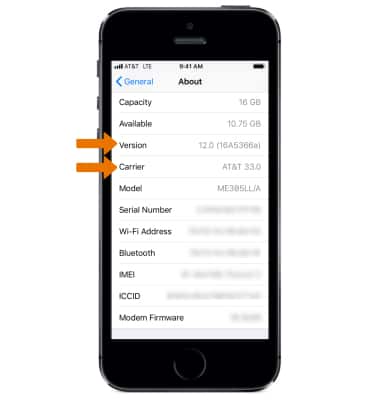
- To view your current software version, from the home screen, select the Settings app.
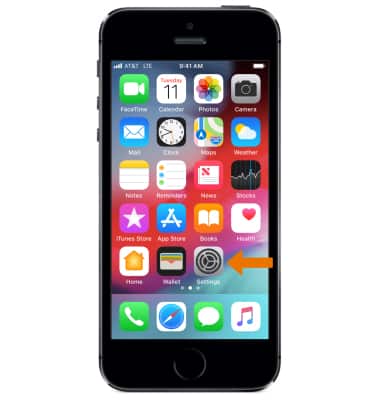
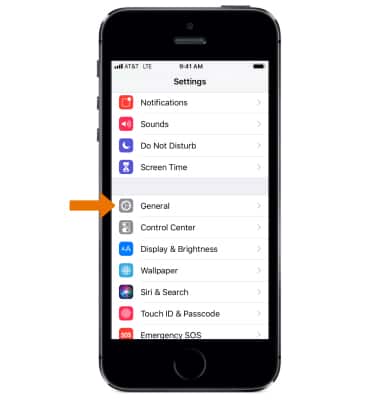
- Select General.
- Select About.
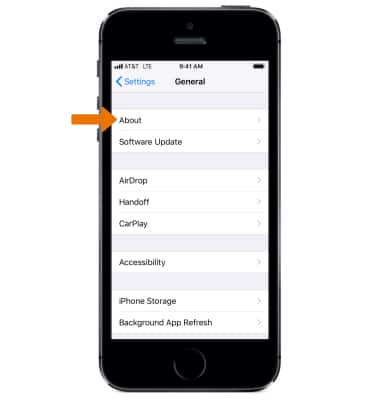
- Scroll down to view the Version and Carrier number information.
- To check for software updates via device and update wirelessly, from the General screen select Software Update.
Note: If an update is available, select Download and Install and follow the prompts. If you use a passcode, you'll need to enter it before installing the update. Your device must be plugged into a power source in order to update wirelessly. Before you update, back up your device to iCloud or iTunes. Updates may download automatically while your device is connected to Wi-Fi and a power source.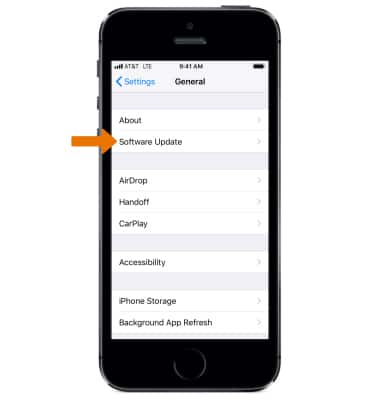
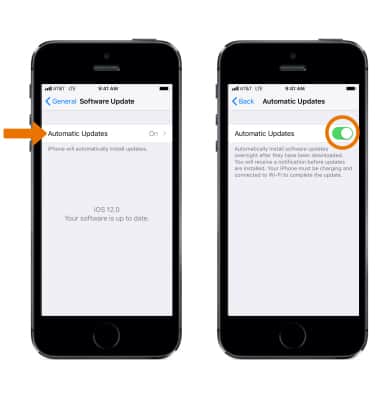
- To turn on/off automatic software updates, from the Software Update screen, select Automatic Updates, then select the Automatic Updates switch.
- If you can’t update wirelessly or if you want to update with iTunes, connect the device to the computer using the included Lightning-to-USB cable.
Note: Updates might download automatically while your device is connected to Wi-Fi and a power source.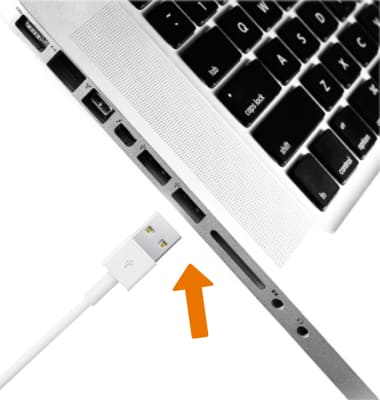
- Install and open the latest version of iTunes on your computer.
Note: Learn more from Apple support article: Get the latest version of iTunes.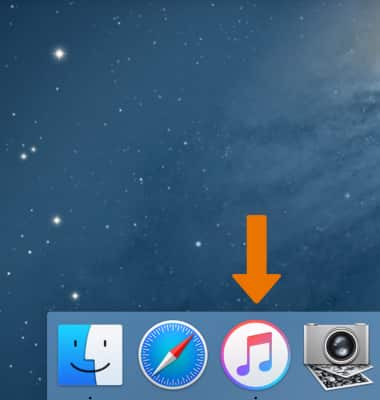
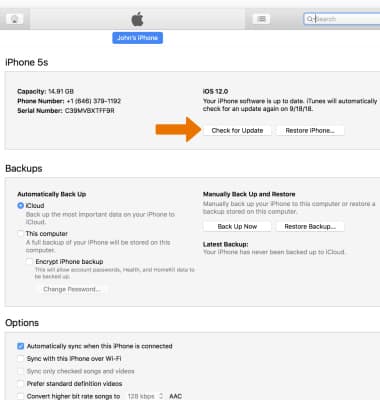
- Click on the device icon.
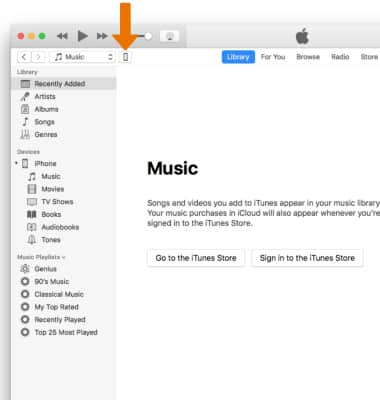
- From the Summary panel, click Check for Update. If an update is available, follow the prompts.