Control Center
Use Control Center for quick access to commonly used settings, apps, and more.
In this tutorial, you will learn how to:
• Access Control Center
• Access apps and features
• Use music controls
• Use focus features
• Edit Control Center
• Restrict Control Center access
• Reset to default layout
• Close Control Center
Access Control Center
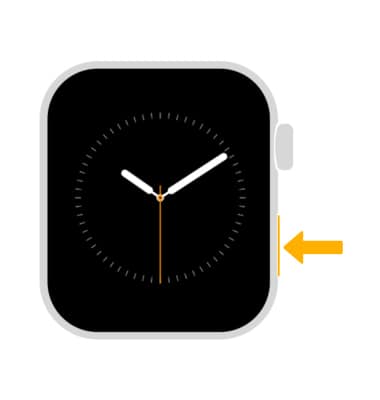
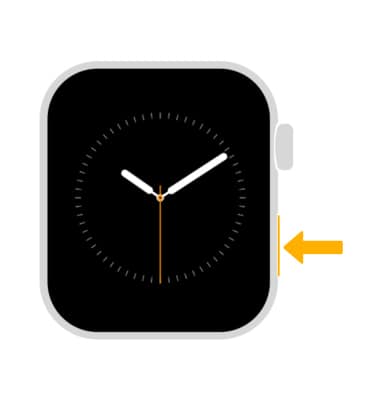
Press the Side button.
Access apps and features
To access apps or features from the Control Center, navigate to and select the desired app or feature. 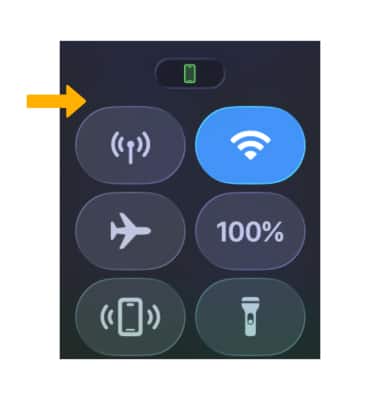
Use music controls
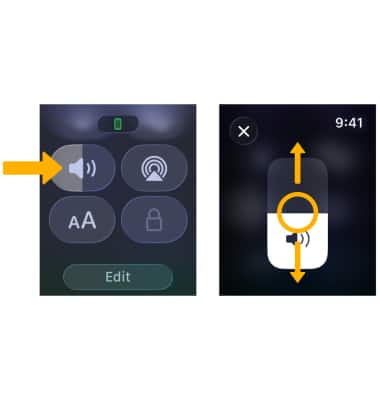
To access Volume controls, from the Control Center, scroll to and select the Volume icon. Select and drag the Volume slider to adjust the volume as desired.
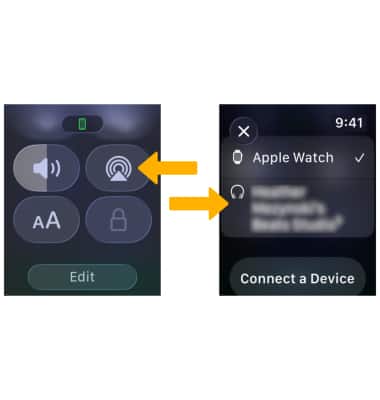
To access Airplay audio settings, from the Control Center, scroll to and select the Airplay icon. To switch the device audio is play from, select the desired device or select Connect a Device.
Use focus features
To enable or disable Focus features, from the Control Center, scroll to and select the Focus icon. Select the desired Focus feature you wish to use.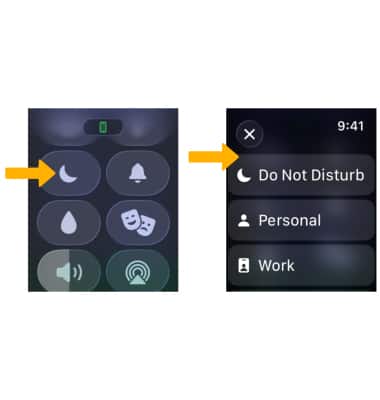
Edit Control Center
1. From the Control Center, scroll to and select Edit.
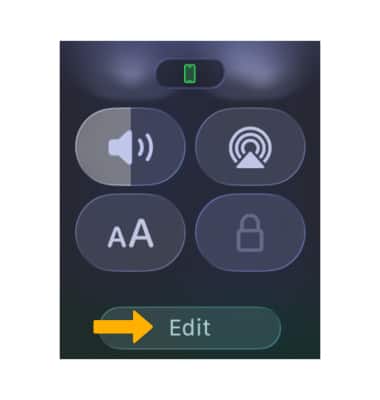
2. Select the desired option(s). When finished editing the Control Center, select Done.
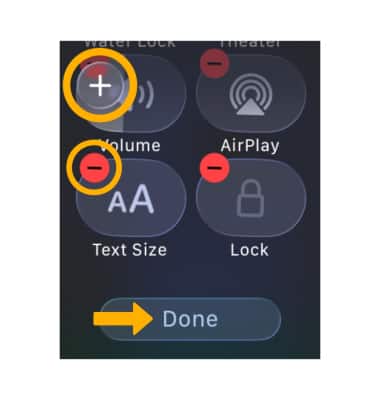
• ADD AN APP OR FEATURE: Select the Add icon. Navigate to and select the desired app or feature to add it to the Control Center.
• REMOVE AN APP OR FEATURE: Select the Remove icon to delete an app or feature from the Control Center.
Restrict Control Center
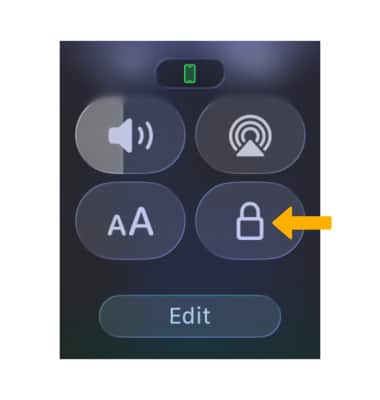
To restrict access to the Control Center, you will have to lock the device. To lock the Apple Watch, from the Control Center, scroll to and select the Lock icon.
Note: To lock the Apple Watch, you must have a passcode set up.
Reset to default layout
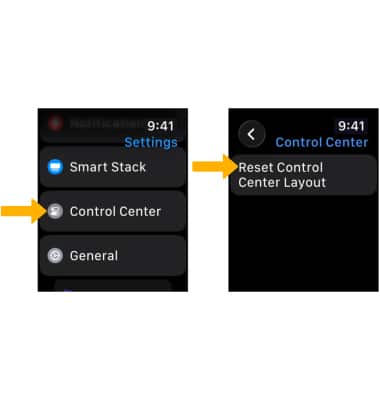
1. To reset the Control Center to its default layout, from the clock screen, press the Digital Crown/Home button then select the  Settings app.
2. Scroll to and select Control Center, then select Reset Control Center Layout.
Note: Select Reset Control Center to confirm.
Close Control Center
To close the Control Center, press the Side button.