Summarize
Apple Intelligence generates summaries of your call transcripts, voice notes & emails, so you can get to the most important information at a glance.
In this tutorial, you will learn how to:
• Summarize transcripts from calls or notes
• Summarize emails
Summarize transcripts from calls or notes
RECORD CALLS: Calls can be recorded and automatically transcribed from the  Phone app.
1. Select the  Record call icon during an active call.
2. Recordings will be saved in the Notes app.
SUMMARIZE CALL RECORDINGS:
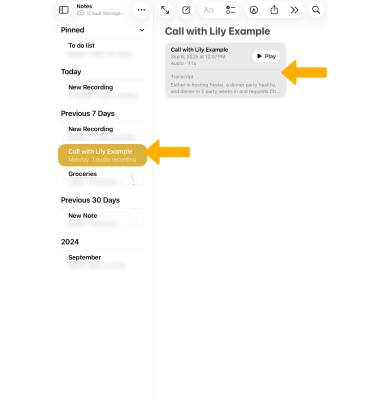
1. From the  Notes app, select the desired note, then select the recording.
Note: To access the recordings folder, select  Sidebar icon, then select Call Recordings.
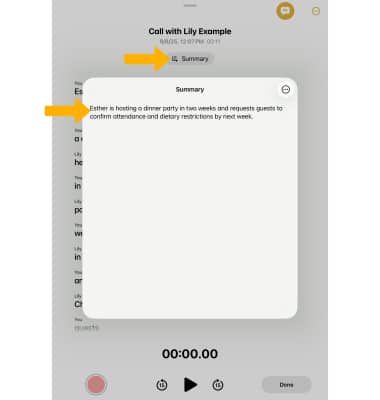
2. Select Summary. The summary will be displayed.
RECORD VOICE NOTES:
1. From the Notes app, select the  Create Note icon.
2. Select the Arrow icon.
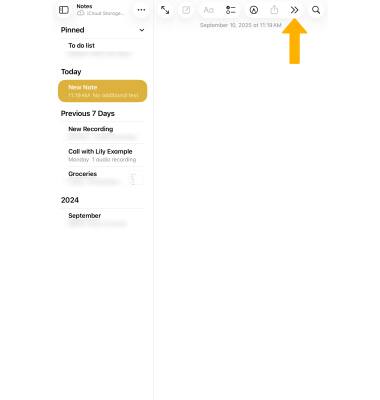
3. Select Attachments, then select Record Audio.
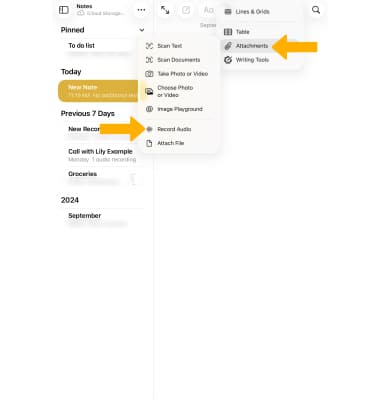
4. Select the Record icon to record audio as desired.

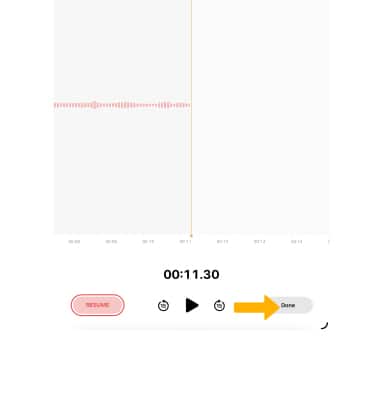
5. When finished, select the Pause icon then select Done. Recordings will automatically be saved in the Notes app.
SUMMARIZE VOICE NOTES:
1. From the Notes app, navigate to and select the desired note, then select the desired recording.
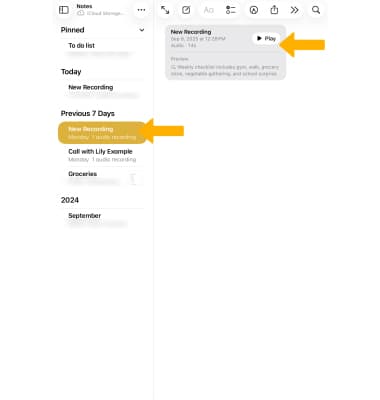
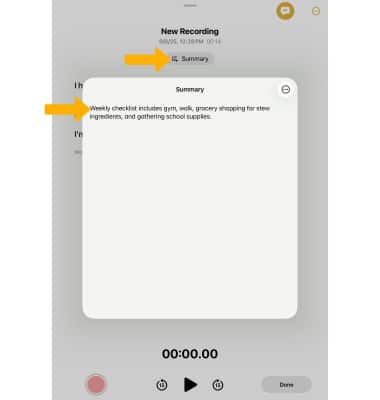
2. Select Summary. The summary will be displayed.
Summarize emails
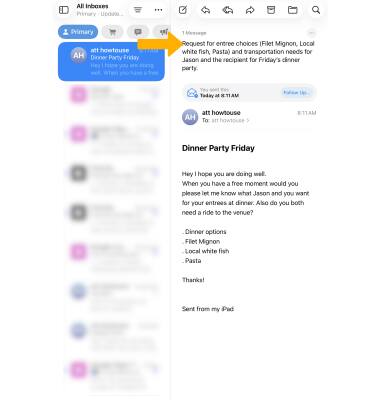
1. From the  Mail app, navigate to and select the desired email, then select Summarize.
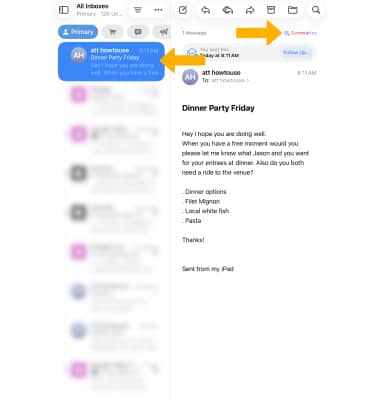
2. The summary will be displayed at the top of the screen.