Make & Receive a Call
Learn how to place, receive, and reject a call.

In this tutorial, you will learn how to:
• Make a phone call
• Answer or decline a call
• Reject a call with a text message
• Make a FaceTime audio call
• View a FaceTime video message
• Use Hold Assist
Make a phone call
1. From the clock screen, press the Digital Crown/Home button then select the  Phone app.
2. Select the Keypad icon. Enter the desired number, then select the Call icon.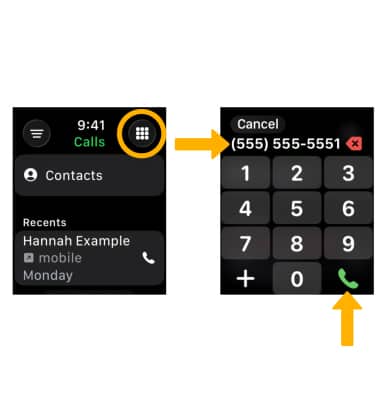
Answer or decline a call
When you have an incoming call, select the Decline icon to decline the call. Select the Accept icon to accept the call.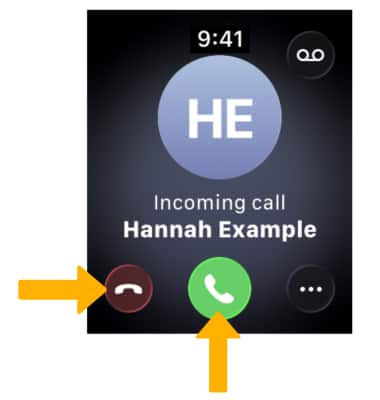
Reject a call with a text message
From the Incoming call screen, select the Menu icon then select the desired auto response option and follow the prompts. 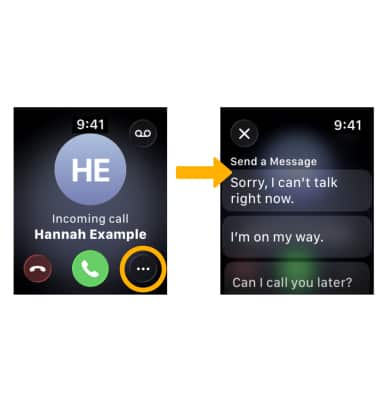
Make a FaceTime audio call
1. From the Phone app, select Contacts. Navigate to and select the desired contact. 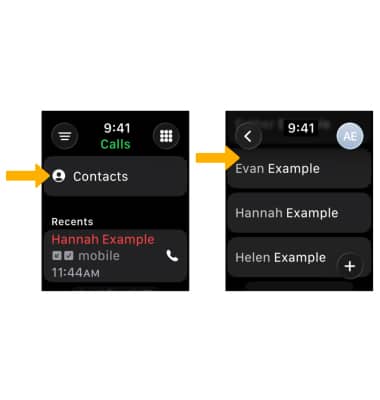
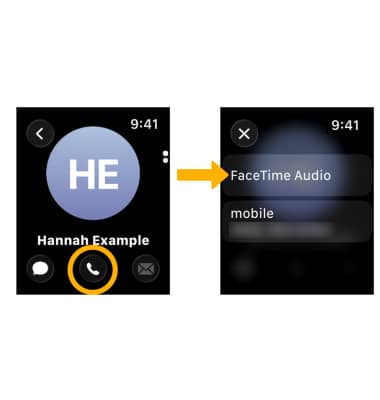
2. Select the Call icon, then select FaceTime Audio.
3. While on an active FaceTime Audio call, select the corresponding options.
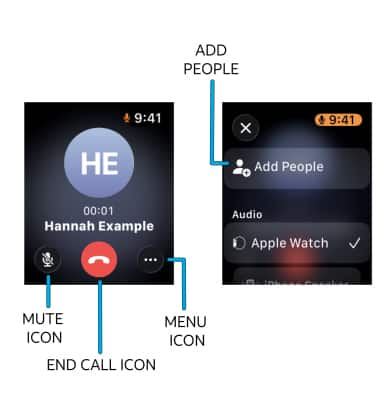
• END CALL: Select the End call icon.
• ADD RECIPIENT: Select the Menu icon, then select Add People and follow the prompts.
View a FaceTime video message
1. If someone leaves you a recorded video message on FaceTime, you can view it directly on your Apple Watch. To view a FaceTime video message, from  Phone app, select the Filter icon then select Voicemail.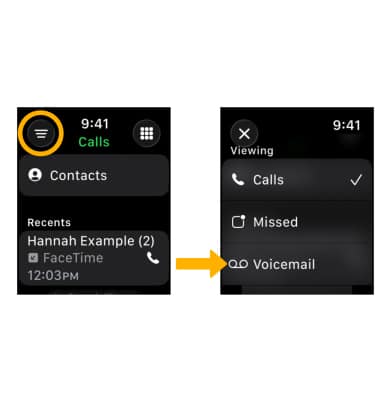
2. Select the desired video message.
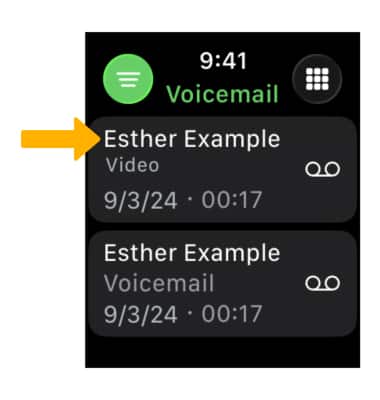
3. Select the corresponding options:
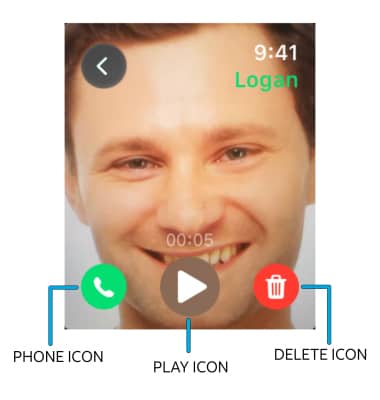
• CALL BACK: Select the Phone icon.
• DELETE: Select the Delete icon.
Use Hold assist
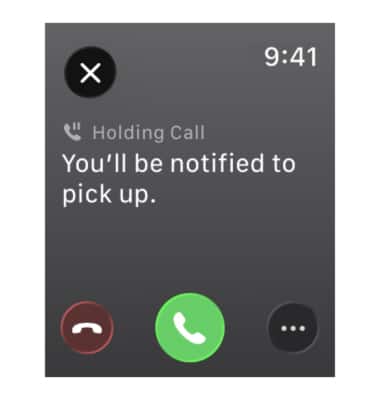
Hold Assist keeps your spot in line while you wait for a live agent and notifies the user to return to the call. To use Hold Assist, you will need to keep your paired iPhone nearby your Apple Watch.
Note: Hold Assist is enabled by default. To disable or re-enable Hold Assist, from your paired phone, navigate to and open the  Settings app > scroll to and select Apps > Phone > scroll to and select the
  Hold Assist Detection switch.